Set a standing desk so your keyboard and mouse sit about level with your relaxed standing elbows. Stand naturally in the shoes you normally wear, let your upper arms hang close to your sides, and raise the keyboard surface until you can type with relaxed shoulders, open elbows, and straight wrists. UCLA Health gives the same simple starting point: set a standing work surface approximately at standing elbow height (Sitting to Standing Workstations).
That is a starting measurement, not a universal number in inches. Your keyboard tray, shoes, floor mat, monitor, and task can all change the final setup. The goal is to fit the workstation to you, rather than lifting your shoulders, bending your wrists, or craning your neck to fit the desk.
For a screen adjustment, see our monitor arm guide.
Key Takeaways
- Start with the keyboard and mouse at relaxed standing elbow height, then fine-tune from there.
- Save distinct standing and sitting presets. One setting will not automatically work in both positions.
- Set the monitor separately: directly in front of you, with its top just below eye level and at least an arm’s length away (UCLA Health).
- Recheck after changing shoes, adding a mat, or introducing a keyboard tray.
- If the desk range is wrong, address the specific mismatch before replacing the desk.
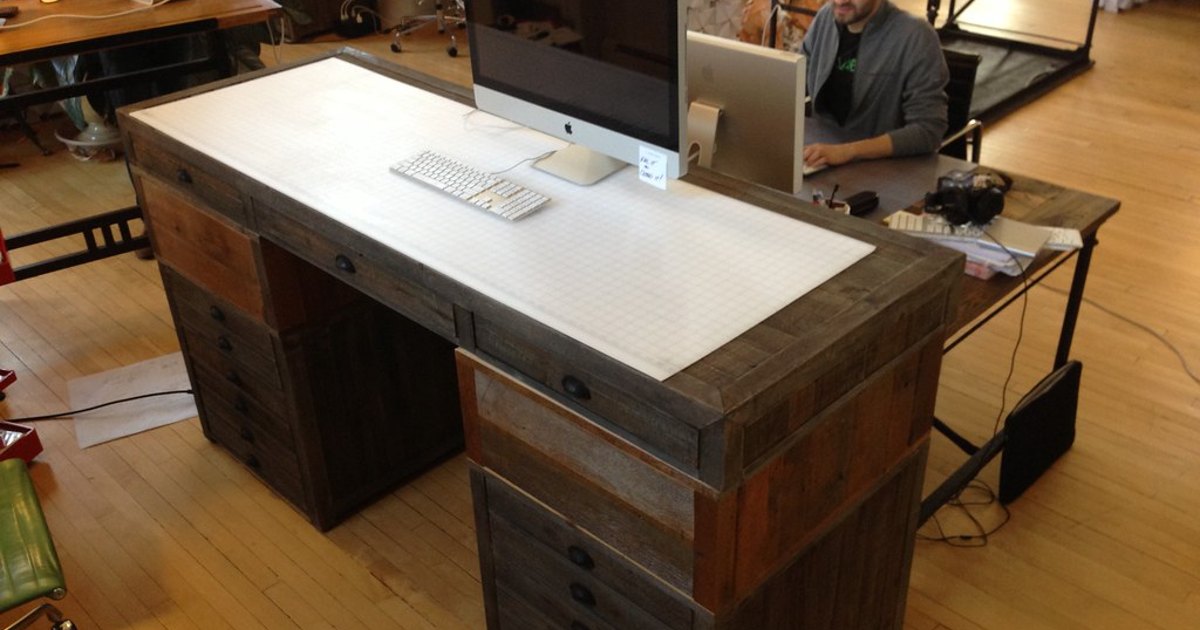
Photo: Standing desk by juhansonin, licensed CC BY 2.0. Resized and cropped. Illustrative stock photo; no product testing is implied.
Measure your standing elbow height first
The useful measurement is your working elbow height, not your full height or a generic desk-height chart. A fixed surface that works for one person can be too high or low for another person of a similar overall height.
- Put on the shoes you normally wear while working.
- Stand on the floor or mat you plan to use.
- Face your desk with shoulders relaxed and upper arms near your torso.
- Bend your elbows as you would while typing, without lifting your shoulders.
- Raise or lower the keyboard surface until the keys meet your hands at that level.
Use the keyboard and mouse as the reference because they need the most consistent hand and arm position. Cornell’s computer-workstation guidance recommends relaxed upper arms and elbows near the torso. It also recommends elbows at or greater than a 90-degree angle and wrists kept as flat as possible (CUergo: Computer Workstation Ergonomics Guidelines).
Do not apply every elbow-height figure you see to keyboarding. CCOHS lists task-specific work-surface heights for industrial precision, light, and heavy work, but it does not classify computer keyboarding or set a keyboard-height number. Its guidance is a reminder that the task matters, not a computer-desk sizing chart (Working in a Standing Position – Basic Information).
A quick standing-desk height check
| What to check | What you want to see | If it is off |
|---|---|---|
| Shoulders | Relaxed, not creeping upward | Lower the keyboard surface or tray |
| Elbows | Open, with upper arms near your sides | Adjust the keyboard surface slightly |
| Wrists | Straight, not tipped up, down, or sideways | Adjust keyboard angle or tray tilt |
| Mouse | Close to the keyboard and near the same level | Move it closer or adjust its platform |
| Screen | Directly ahead, top just below eye level | Adjust the monitor height separately |
Make one small change at a time. That makes it easier to tell whether the problem is the keyboard, mouse, screen, or how you are standing.
Fine-tune the keyboard and mouse before the monitor
Once the keyboard reaches elbow height, type for a few minutes. Your shoulders should not need to hold themselves up, and your wrists should not need to bend to reach the keys. If the desktop is slightly too high, an adjustable keyboard tray can solve the keyboard-height problem without changing the whole desk.
Keep the keyboard centered in front of you and place the mouse immediately beside it, so the combined keyboard-and-mouse area stays within comfortable shoulder width. That avoids reaching away from your body. UCLA Health advises keeping the keyboard and mouse about shoulder-distance apart and nearly level, with the pointing device as close to the keyboard as possible (Worksurface). Cornell likewise notes that the mouse should stay near the body (CUergo).
If you use a keyboard tray
A keyboard tray changes the measurement that matters. Measure to the top of the keys, not to the desktop above them. A tray below the desktop may let a shorter person use a desk whose main surface does not lower far enough. It can also preserve a higher desktop for handwriting while placing the keyboard where your arms need it.
You need enough clearance to stand close to the keys and sit without bumping your knees or thighs. UCLA Health recommends a tray adjusted to keep shoulders relaxed, elbows open, and hands and wrists straight (Worksurface).
Adjust the monitor separately from the desk surface
Do not raise the entire desk just to lift the screen. If the keyboard is already at a comfortable elbow height, use a monitor arm, riser, or stand adjustment for the screen. Check mounting and monitor compatibility first.
Put the monitor directly in front of you. UCLA Health recommends the top of the monitor just below eye level and at least an arm’s-length viewing distance, adjusted for your vision (Monitors, Documents and Phones). Cornell similarly advises a centered display and roughly arm’s-length distance, and suggests enlarging text rather than moving closer (CUergo).
This is why the screen and keyboard may need different solutions. A laptop or a low monitor stand can require a screen adjustment without changing the correct keyboard height. With a laptop, an external keyboard and mouse make separating those two heights easier.
Create a separate seated preset
Your seated desk height should also be based on your keyboard and mouse position, but chair height, feet, and leg clearance now matter. Lower the desk from your standing preset, then adjust your chair and keyboard surface until your shoulders can relax and your wrists stay straight.
UCLA Health’s seated worksurface guidance places the keyboard about 1 to 2 inches above the thighs and recommends adjusting the tray, chair, or workstation if needed. It also says to use a footrest if your feet do not reach the floor (Worksurface). Cornell advises supported seating with feet on the floor or a footrest (CUergo).
For an electric desk, save the two positions after checking both. Do not assume standing height minus a fixed number will work, because chair height, seat cushion thickness, footwear, and tray position differ.
Recheck when shoes, a mat, or your work changes
A shoe change or anti-fatigue mat changes the distance between your elbows and the keyboard. Recheck the standing preset after adding one rather than guessing how much to move the desk.
UCLA Health recommends supportive shoes and an anti-fatigue mat for its standing-workstation setup (Sitting to Standing Workstations). CCOHS adds an important safety limit: standing areas should be clean, level, and slip-resistant; a mat should not create a trip hazard, and thick foam-rubber mats may be excessively soft (Working in a Standing Position – Basic Information).
Also consider the task. Typing, handwriting, drawing, calls, and paper documents may not all feel best at exactly the same surface height. If writing is frequent, use a raised writing area instead of disrupting the keyboard setup. Keep frequently used objects within comfortable reach. CCOHS recommends keeping usual tasks close and avoiding excessive bending, stretching, twisting, and overreaching (Working in a Standing Position – Basic Information).
What if your standing desk does not fit you?
A desk that feels wrong at its limit does not always need replacement. First identify whether the mismatch is the keyboard, screen, or floor-to-elbow distance.
If the desk will not go low enough
Try a keyboard tray that lowers the keys below the desktop. If a platform is needed, it must be stable, large enough for your stance, and not create a trip hazard. CCOHS notes that a platform can raise a shorter worker where a surface is not adjustable (Working in a Standing Position – Basic Information).
If the desk will not go high enough
Raise the keyboard work surface with a stable riser only if it still leaves enough room for the keyboard and mouse and keeps your arms relaxed. A monitor arm selection guide can help if the screen needs a separate adjustment. CCOHS suggests raising a work surface for a taller worker when it is not adjustable, but that is general standing-work guidance, so confirm the resulting computer setup (Working in a Standing Position – Basic Information).
When a different desk is justified
Choose a desk with a more suitable range if you cannot set the keyboard and mouse near elbow height. Elevated shoulders or bent wrists are signs that the range is wrong. So are an unstable platform and a cramped tray.
Compare the effective keyboard-height range, not only the advertised desktop range. Before buying, record the floor-to-top-of-keys height at your comfortable sitting preset. Record it again at your standing preset. Wear your usual shoes and stand on your usual mat. Keep the keyboard tray in place while measuring. Then check that the desk’s effective minimum and maximum keyboard heights include both numbers. Account for a tray that lowers the keys below the desktop.
Change positions instead of trying to stand perfectly all day
The point of a sit-stand desk is not to find one flawless standing posture and hold it indefinitely. CCOHS recommends frequent changes among balanced positions and, where feasible, alternating sitting and standing (Working in a Standing Position – Basic Information). Cornell also frames adjustable workstations around alternating posture rather than static standing (CUergo).
Use the checked sitting and standing presets, then change positions when it fits your work. UCLA Health suggests using a timer if helpful and offers sitting for an hour and standing for five minutes as one example schedule (Sitting to Standing Workstations).
If you notice continuing discomfort or cannot obtain a neutral, workable arrangement, reassess the individual components and consider professional advice. Cornell advises seeking professional advice when a computer arrangement still does not feel right, while CCOHS recommends matching work height to body dimensions and the task (CUergo; Working in a Standing Position – Basic Information).
Frequently asked questions
How high should a standing desk be for typing?
Start with the keyboard and mouse at relaxed standing elbow height. Then make small adjustments until your shoulders are relaxed, elbows are open, and wrists remain straight. The number on the height display is personal, so a generic inch measurement is less useful than this check.
Should my monitor be at elbow height too?
No. The keyboard and mouse set the work-surface height. Position the monitor separately, directly in front of you, with its top just below eye level and the screen at least an arm’s length away (UCLA Health).
Does an anti-fatigue mat mean I should lower my desk?
It can change your effective working height, so recheck your elbow-height setup after adding one. Do not lower the desk by a preset amount. Make sure the mat lies flat and does not create a trip hazard (CCOHS).
Do I need a new standing desk if mine is too high for me?
Not necessarily. A keyboard tray that lowers the keys, a stable platform where appropriate, or a separate monitor adjustment may fix the mismatch. Replace the desk when you still cannot create a stable, comfortable keyboard, mouse, and monitor setup within its effective range.
The simple rule to remember
Set the keyboard and mouse around relaxed standing elbow height, adjust the monitor independently, and save a separate seated preset. Recheck whenever footwear, a mat, tray, or task changes. That approach is more reliable than copying someone else’s number because it accounts for the equipment and body position you actually use.