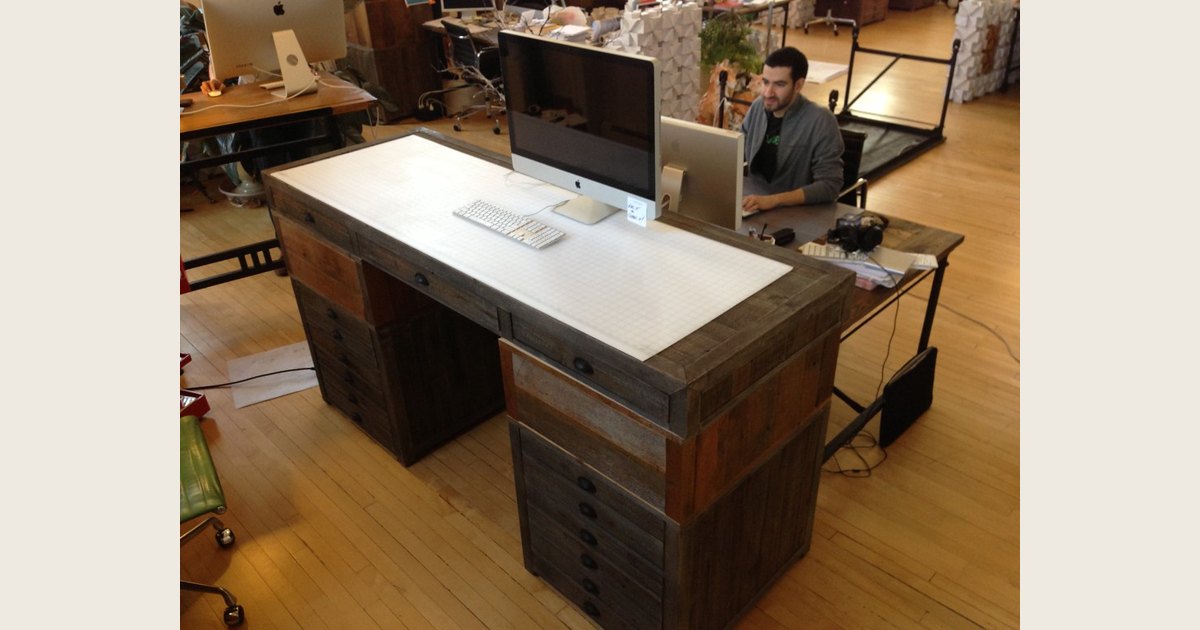
Standing desk. Illustrative image.
Photo: Standing desk by juhansonin, https://www.flickr.com/photos/38869431@N00/8682730703; https://creativecommons.org/licenses/by/2.0/. Resized and padded. Illustrative stock photo; no product testing is implied.
On this page: Verified UPLIFT example · Make the desk safe · Find the model · Confirm the panel responds · Choose a next step by symptom · Contact support
If your standing desk is locked, the right way to unlock it is to use the instruction for your exact desk or control panel—not a random button combination. A child lock commonly disables the keypad on purpose, but the buttons, display messages, and hold times vary by controller. Some use a dedicated lock control; others use a memory key or a combination. If the screen shows a lock symbol or a message such as LOC, start by finding the desk’s model and the handset’s instructions.
First, make the desk safe to test
Before touching the controls, remove people, pets, chairs, storage, and loose items from the desk’s path. Look both below the desktop and behind it: a chair arm, file cabinet, wall shelf, or taut monitor cable can interfere with travel. A mounted display deserves a second look: the cable slack and mounting clearance covered in our guide to choosing a monitor arm matter whenever a desk moves through its full range.
This is not merely a precaution for a lock. Anti-collision protection is a separate feature from a keypad lock. For example, Eureka Ergonomic describes the sensor on one of its standing desks as stopping movement when it detects an obstruction. Those are different problems and call for different fixes: clear the travel path before you test an apparent lock. Eureka’s product information provides one product-specific example.
Then do a quick visual check:
- Is the desk plugged directly into a working outlet or the power strip you normally use?
- Is the control panel lit, blank, or showing letters, a lock icon, or a number?
- Are the handset cable and power cord visibly seated, with no pinched or damaged sections?
- Does the desk move in one direction, briefly start and stop, or do nothing at all?
Take a photo of the display and note the desk’s current height. That record helps you compare what you see with the manual and gives support a useful starting point if the desk still will not respond.
Identify the desk and controller before troubleshooting
Find the desk brand and model on the order confirmation, assembly guide, frame label, or underside of the desktop. The control panel may have its own model number on the back. These identifiers matter because a desk frame can be sold with different handsets over time. If you use a manual desktop converter rather than a powered desk, it may not have a controller or electronic lock; see our explanation of what a riser desk is before applying electric-desk troubleshooting.
Search the brand’s official support area for the desk model and controller model. Prefer an operating manual to an assembly guide or general troubleshooting article. Use an unlock sequence only when the manual covers your model, the button diagram matches your panel, and the listed lock indicator matches what you see. Follow the stated timing and confirmation exactly. Do not try several button combinations at random.
Verified example: UPLIFT V2 F500 with an Advanced Keypad
Use this example only for the V2 2-Leg F500 C-frame or T-frame setup covered by the linked 2023 UPLIFT manual, with a matching Advanced Keypad. It explicitly excludes the Advanced Paddle Keypad. Match your frame, keypad and instructions before following it; this is not a universal M-button procedure.
The manual’s “Programming (Advanced Keypads only)” section explains the lock and its confirmation:
- Clear the desk’s entire travel path and keep people, pets and cables clear.
- If the matching keypad shows
LOC, hold its M button until the display shows the current numeric height setting. That display change is the manual’s unlock confirmation; it does not prescribe a fixed number of seconds. - With the path still clear, make a small controlled movement to confirm response. Stop if there is an obstruction, unexpected movement or a fault code.
To lock this supported keypad again, the same manual says to hold M until LOC appears. It also says this keypad returns to the unlocked setting after a power outage, so verify the actual display rather than assuming the lock remains active. These details come from the official UPLIFT V2 F500 operating instructions, not a general brand-comparison blog.
If you have the Advanced Paddle Keypad, a different frame or a revised controller, use its own instructions. If the model-specific manual is unavailable or the display does not change as described, contact support rather than trying other button combinations.
Confirm the panel responds
After following the matching manual’s unlock step, check for the confirmation it specifies, then make a small test movement in a clear direction. Stop as soon as you confirm the desk responds. If the manual is unclear about confirmation, ask the manufacturer rather than guessing. Avoid using a preset for the first test because it may move farther than expected.
A responsive panel does not necessarily mean every fault is fixed. If the desk stops during movement, recheck the travel path and cable slack. Once it moves normally, our guide to finding your standing-desk height can help you choose a comfortable setup.
Quick symptom guide
Use this summary to choose a safe first check; it does not diagnose the fault. Confirm the meaning of a display or symptom in the instructions for your exact desk and controller.
| What you notice | Safe next step |
|---|---|
| Blank display | Check the outlet and visible connections; follow a power-cycle procedure only if the manual directs it. |
Lock icon or LOC |
Verify the indicator in the matching controller manual, then follow only its unlock instructions. |
| An unfamiliar code | Search the exact code with the desk and controller model; contact support if unclear. |
| Desk starts moving, then stops | Clear the travel path and inspect cable slack; do not assume the keypad is locked. |
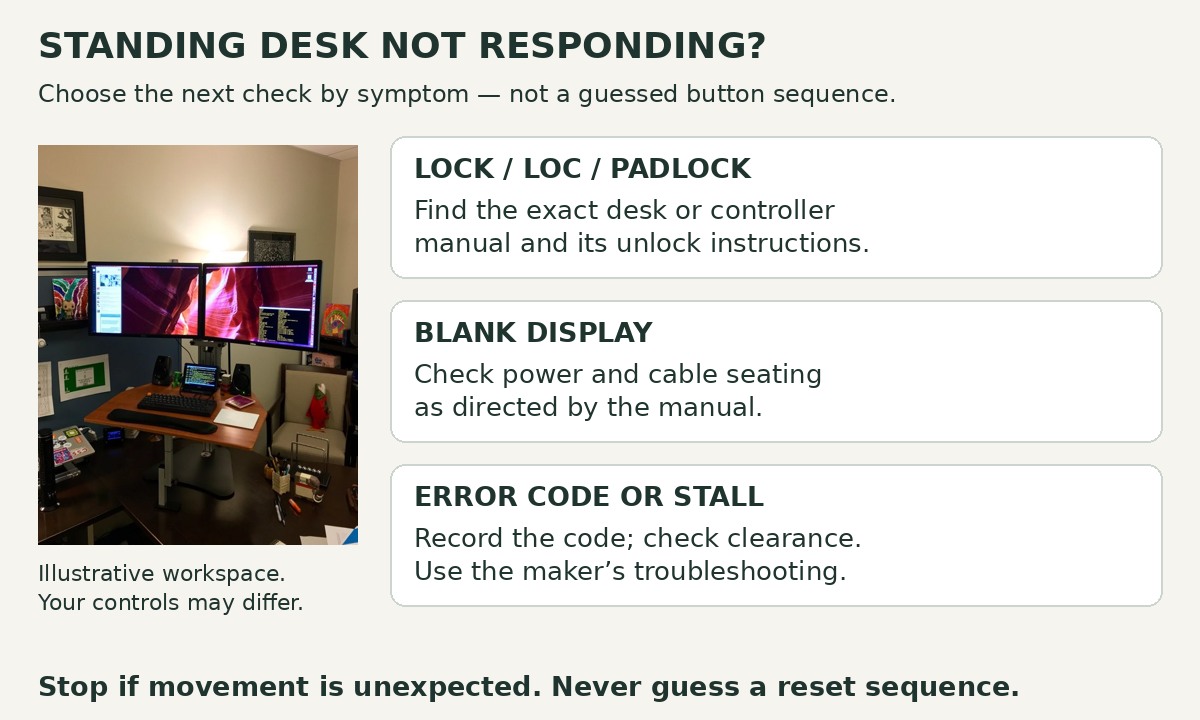
Desk and Day’s annotations map symptoms to checks; the image is not a specific controller or tested model.
Photo: standing desk in standing position by blakespot, https://www.flickr.com/photos/35448539@N00/25423649234; https://creativecommons.org/licenses/by/2.0/. Photo cropped; troubleshooting annotations by Desk and Day. Illustrative workspace, not a specific controller or tested desk model.
When the control panel still will not respond
If the official unlock sequence does not work, pause before escalating to a reset. Treat the display as a clue rather than proof that the child lock is at fault.
The display is blank
Check the power source and cable routing first. If the outlet or power strip is working for another low-power device, inspect the desk’s accessible plugs for an obvious loose connection. Do not disassemble the control box, splice wires, or force a connector. With the desk unplugged, you can make sure nothing is pulling hard on the cables; reconnect only as the manufacturer directs.
If the manual calls for a power cycle, use that model-specific procedure. Do not turn a generic online recovery sequence into a universal button recipe; a reset and a keypad unlock are different functions.
The panel shows a code, lock icon, or letters
Search the exact characters together with the brand and controller model, then prefer the official manual or support page. Do not translate a code from a different manufacturer. A label that resembles LOC may be a lock status on one controller but an error overlay or other status on another.
Clear the motion path before trying the approved next step. If the desk briefly moves and immediately stops, an obstruction or protection setting is more plausible than a simple keypad lock. Check for objects under the desk, equipment mounted beneath the top, and cables with too little slack at the desk’s current height.
The keys feel sticky or act as if they are being held down
Disconnect power before cleaning. Wipe around the keypad gently with a dry, soft cloth and let it dry completely before reconnecting it. Do not drip cleaner into the panel or pry it open. If a spill reached the electronics, skip repeated tests and contact the manufacturer; cycling power and pressing buttons cannot make liquid damage safe.
Reset only when the correct manual calls for it
Unlocking and resetting are not interchangeable. An unlock reverses a deliberate control restriction. A reset, initialization, or calibration procedure may re-establish the desk’s lowest position, clear a controller state, or address a loss of sync. It can also differ by frame, handset, and motor system.
Use a reset only if the support material for your exact desk recommends it for the symptom you have. Follow its safety instructions, clear the entire travel zone, and expect that stored height presets may need to be set again if the manual says so. Do not use a downward-hold reset copied from another desk just because it appears often online. There is no universal controller standard for a reset sequence.
What not to do
Avoid these shortcuts:
- Do not repeatedly mash controls or hold unrelated buttons to see what happens.
- Do not move the desktop by hand, climb on it, or place extra weight on it to force a response.
- Do not bypass the controller, open the control box, or substitute an unapproved power supply.
- Do not keep testing while a person, chair, pet, or cable is in the travel path.
- Do not rely on a video or forum instruction that does not name your controller.
These steps can turn a minor configuration issue into a damaged part or an unsafe moving desk.
When to contact support instead
Contact the manufacturer or retailer’s support team when the manual’s unlock procedure fails, a code persists, the desk moves unevenly, a cable or controller is damaged, or you cannot identify the model. Give them the desk and handset model numbers, a photo of the display, a description of what happens when you press up or down, and the troubleshooting steps you already took.
Frequently asked questions
How can I tell whether my standing desk is locked?
A lock icon, LOC-style message, or controls that ignore normal height commands can be signs of a lock, but none is conclusive across brands. Confirm the meaning in the manual for your controller. A blank display, a code, or a desk that stops during travel points to a different troubleshooting path. If the manual is unavailable or does not identify an unlock step and its confirmation, contact the manufacturer rather than borrowing a sequence from another model.
Is holding the M button the universal way to unlock a standing desk?
No. Some controllers use a memory control, but others use a lock key, a combination, or no lock feature. Only use the M-button method when the official instructions for the panel in front of you specify it.
Will unplugging the desk unlock it?
It may be part of a manufacturer-prescribed power-cycle or reset process, but it does not establish a universal unlock method. Follow the manual’s direction for your controller, then test it with the area clear.
Should I disable the child lock permanently?
Keep the lock available if children or others could activate the desk unexpectedly. A child lock is meant to limit unintentional keypad use; it does not replace clearing the desk’s path or using its safety features correctly. Use the official instructions to enable and disable it when needed.