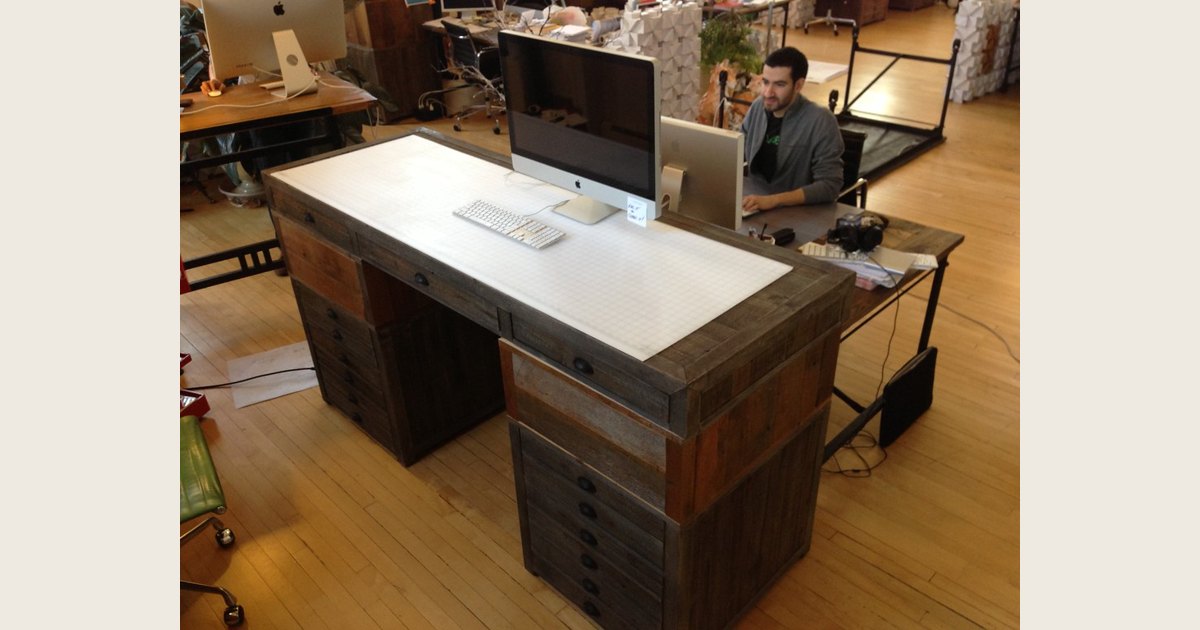
A riser desk sits on top of an existing desk and raises part or all of your work setup. The term can mean a fixed platform that lifts a monitor or laptop, but it more often means a height-adjustable desktop converter that lets you work sitting or standing without replacing the desk.
It is a middle ground, not a universal solution. A small monitor riser does not create a standing keyboard height, while a larger converter needs enough desk space, capacity, and range for your equipment.
Quick answer: Choose a monitor riser when screen height is the main problem. Choose a desktop converter only when it can raise the keyboard and mouse along with the display, and measure its footprint and load capacity before buying.
Hero photo credit: Standing desk by juhansonin, https://www.flickr.com/photos/38869431@N00/8682730703; https://creativecommons.org/licenses/by/2.0/. Resized and padded. Illustrative stock photo; no product testing is implied.
Riser desk vs. standing desk: the short version
A full standing desk raises and lowers the entire work surface. A riser sits on a conventional desk and lifts the monitor, keyboard, mouse, or a combination of them. Store labels overlap, so focus on what moves and what it can hold.
| Setup | What it changes | Best fit | Main limitation |
|---|---|---|---|
| Fixed monitor or laptop riser | Raises the screen only | Improving a seated setup | It does not create a standing keyboard height |
| Laptop riser | Raises a laptop screen | Laptop work with separate input devices | The built-in keyboard becomes too high to type on once the screen is elevated |
| Desktop sit-stand converter | Raises a work surface, often with a keyboard tray | Switching between seated and standing computer work | It takes up desk depth and has a fixed footprint |
| Full height-adjustable standing desk | Raises the whole desktop | A more permanent, spacious adjustable workspace | It costs more and requires replacing or reworking the desk |
A simple monitor riser can be useful even if you never stand. It brings the display closer to a usable viewing height while your keyboard and mouse remain on the desk. A desktop converter is the more relevant option if you want to alternate between sitting and standing, because it needs to carry the input devices at a workable height too.
How a desktop riser desk works
Most adjustable risers use a scissor, X-frame, column, or spring-assisted mechanism. You raise the platform for standing, lower it for sitting, and use your original desk as the base. Some have one surface; others separate the screen platform and keyboard tray.
The point is to position the screen, keyboard, and mouse together. The UK Health and Safety Executive says the top of the screen should be around eye level and about an arm’s length away, with the keyboard just below elbow height and the mouse in line with the elbow. Keeping the screen and keyboard centered helps avoid twisting. HSE’s posture guidance is a useful basic check.
Raising a laptop without external input devices is a common mistake: it may improve screen placement but makes the keyboard too high. HSE recommends a separate keyboard and mouse for prolonged laptop use so the screen can be elevated. See its laptop setup guidance.
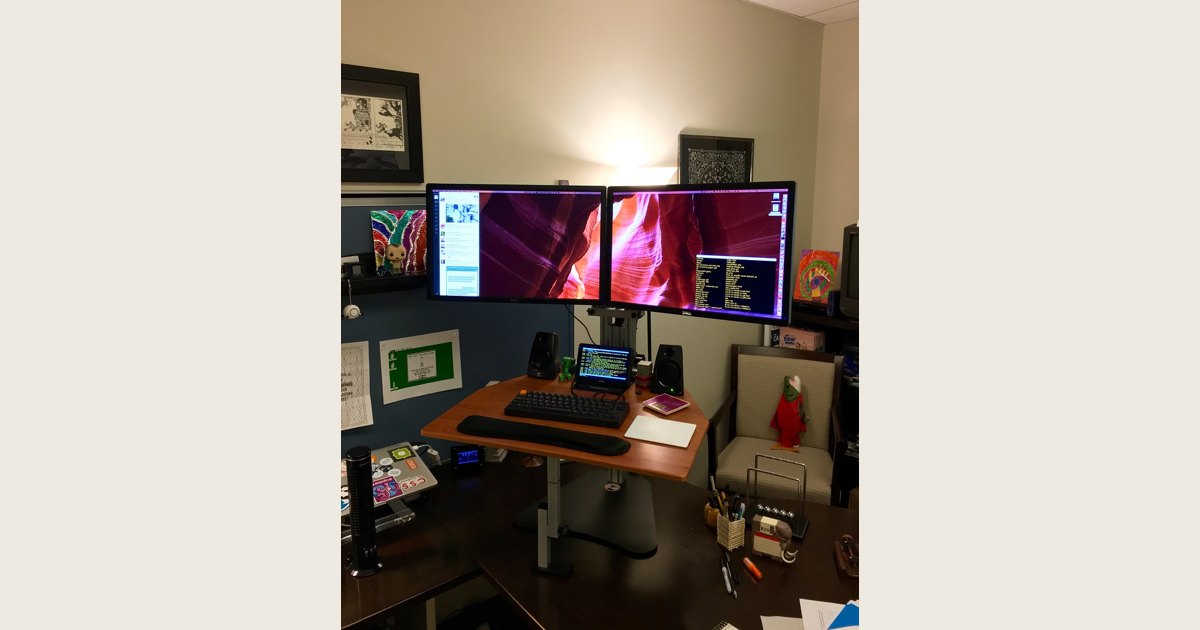
An adjustable workstation can support standing computer work, but the photo is illustrative rather than a depiction of a particular riser model. Photo: standing desk in standing position by blakespot, https://www.flickr.com/photos/35448539@N00/25423649234; https://creativecommons.org/licenses/by/2.0/. Resized and padded. Illustrative stock photo; no product testing is implied.
The measurements to check before buying
Choose a riser based on your setup, not its advertised maximum height. Measure the desk and list everything that must move.
1. Available desk depth and width
Measure clear working space, not just the desk’s outside dimensions. Allow room for the riser base, cables, your arms, and anything you still need on the desk. Check clearance behind it too: a riser that moves upward and outward can conflict with a wall, shelf, drawer, or monitor arm.
2. Equipment weight and surface size
Add the monitors, stands, laptop, dock, keyboard, mouse, and other items on the moving platform. Stay within the manufacturer’s stated capacity. Confirm that the surfaces fit both your displays and enough mouse space; a platform can fit a monitor yet still make typing or pointer movements cramped.
Before ordering, mark the proposed base footprint with painter’s tape or place a similarly sized box on the desk. This quick check makes it easier to notice blocked drawers, lost writing space, and a keyboard tray that would sit too close to the desk edge.
3. Seated and standing range
Test the low position as carefully as the high one. It must lower enough for comfortable sitting, while the raised position should not make you hunch your shoulders or bend your neck. CCOHS recommends using elbow height as a guide for standing work, keeping common items within easy reach, and facing the work instead of twisting. Read its standing-work guidance.
4. Stability and adjustment
A platform that feels solid when low can wobble at full height, especially with tall monitor stands or an off-center load. Look for a stable base and controllable lift. Manual risers do not need power; electric ones can make frequent changes easier. Both need a stable desk and enough cable slack.
How to set up a riser desk well
Use this sequence after placing the riser on the desk:
- Set the keyboard and mouse first. Adjust the work surface until you can type with relaxed shoulders, with the mouse close by.
- Place the screen directly ahead. Center the display instead of angling it far to one side. A monitor-arm buying guide can help when a riser alone cannot position the screen well.
- Check screen height and distance. Start with the top around eye level and roughly an arm’s length away, then adjust for your vision and screen size.
- Check cables in both positions. At full height, cables should have slack and stay clear of moving parts.
- Recheck the seated position. Lower the riser and repeat the keyboard, mouse, and screen check.
- Change position rather than locking into one. Keep a chair available. CCOHS advises frequent position changes and a seat for alternating sitting and standing; it notes prolonged standing can lead to discomfort and fatigue. Its guidance explains why.
For a fuller height walkthrough, see how to find your ideal standing-desk height.
Benefits and tradeoffs of a riser desk
The main benefit is adjustability without replacing a functional desk. A riser can suit renters, shared spaces, occasional home-office use, or anyone testing a sit-stand routine before buying a full desk. For example, someone using a compact home-office desk may prefer a converter when they need occasional standing time but cannot replace the desk; the same person may prefer a full adjustable desk if they regularly need broad space for papers and equipment. In a shared or hot-desk setup, each person should test both the low and high positions: a workable height for one user may not fit another. CCOHS notes that adjustable work height should match the individual’s body size and task. Its standing-work guidance explains the principle.
Its tradeoffs are straightforward:
- Less desktop space: the base and mechanism occupy room.
- A smaller work zone: papers, a lamp, or a large keyboard may not fit alongside computer equipment.
- Possible wobble: tall or off-center loads can feel unstable.
- A compromised seated position: some units do not lower enough or put the keyboard tray too close.
- Lifting constraints: capacity and balance can be less convenient than a full electric desk.
If you use several monitors, need broad work space, change height often, or want everything on the desk to move together, a full adjustable desk may be easier to live with. Our guide on whether standing desks are worth it can help frame that choice.
Who should choose a riser desk?
A desktop riser suits a sturdy, adequately sized desk, particularly for laptop or one-monitor work that does not need much open surface. Choose a full standing desk if you need lots of space, use a heavy multi-monitor setup, need a very low seated height, or want paperwork and accessories to move too. If only the monitor is low, a monitor riser or arm may be simpler.
Common riser-desk problems and practical fixes
The screen is higher, but typing feels awkward. You likely raised only the display. Use a separate keyboard and mouse, or a converter that raises the input devices too.
The riser shakes when you type. Make sure the desk is level, the base is fully supported, and equipment is centered within capacity. A heavy monitor arm can amplify movement on a light converter.
The mouse tray feels too small. If it forces your elbow outward or makes you repeatedly lift the mouse, the platform is too restrictive.
The riser will not lower enough for sitting. Check whether the low position works with your chair before the return window closes. A footrest, chair adjustment, or monitor-arm change may help screen placement, but it cannot make an overly high keyboard tray a good seated fit.
Standing becomes uncomfortable quickly. Lower the riser and sit when needed; standing is not a target to endure. Change position, leave room to move, and keep a chair available. HSE also emphasizes workstation assessment and breaks or changes of activity for regular display-screen users. Read its overview.
A riser works best as an adjustable tool, not a promise that higher is automatically better. Fit it to your desk and equipment, position the screen and input devices deliberately, and retain a comfortable seated option.